Kumaran Handy
Digital Artist | Web Developer | Crypto Gamer | Audiophile
1250+ Procreate Portrait Figure Brushes
In
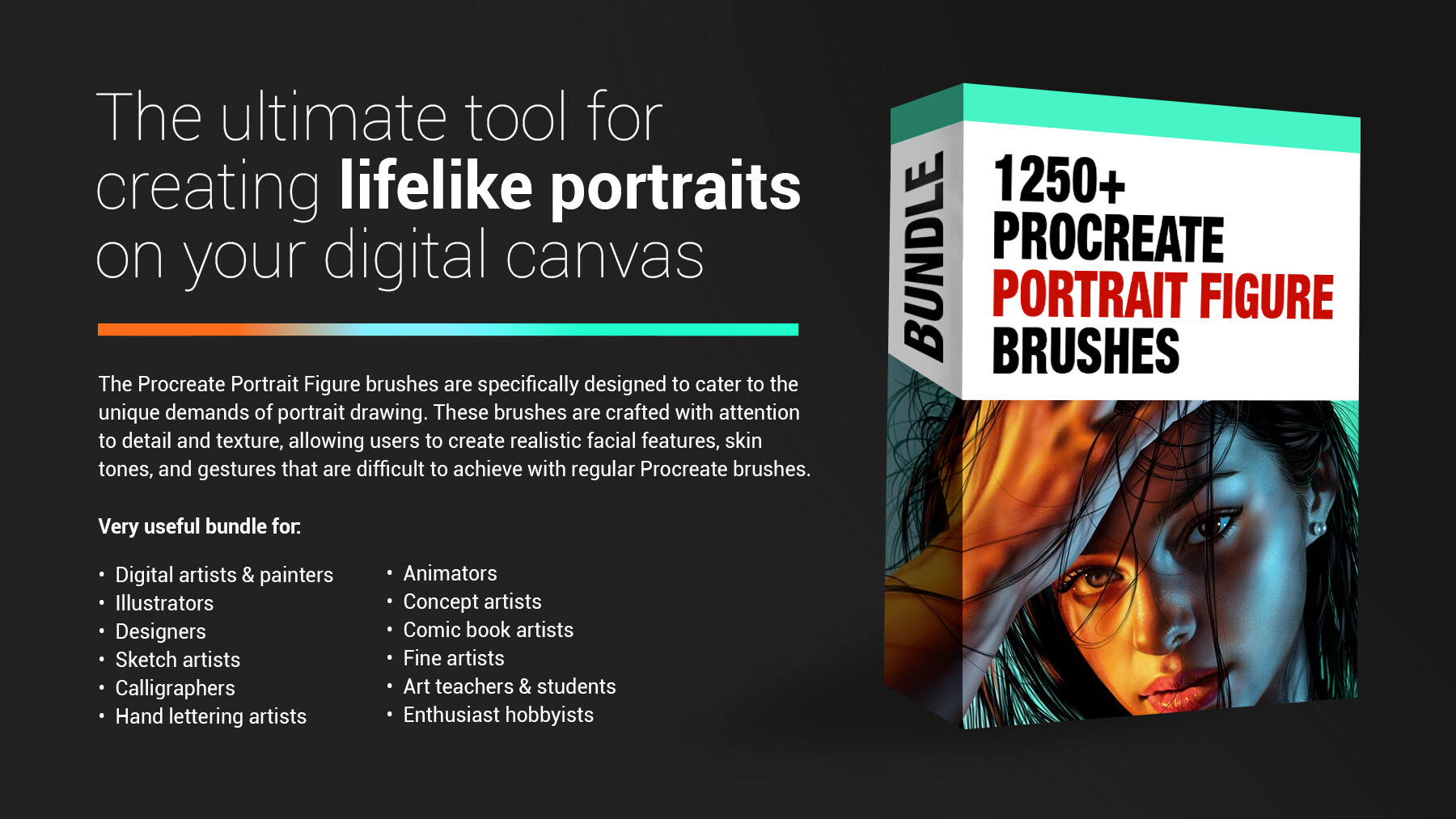

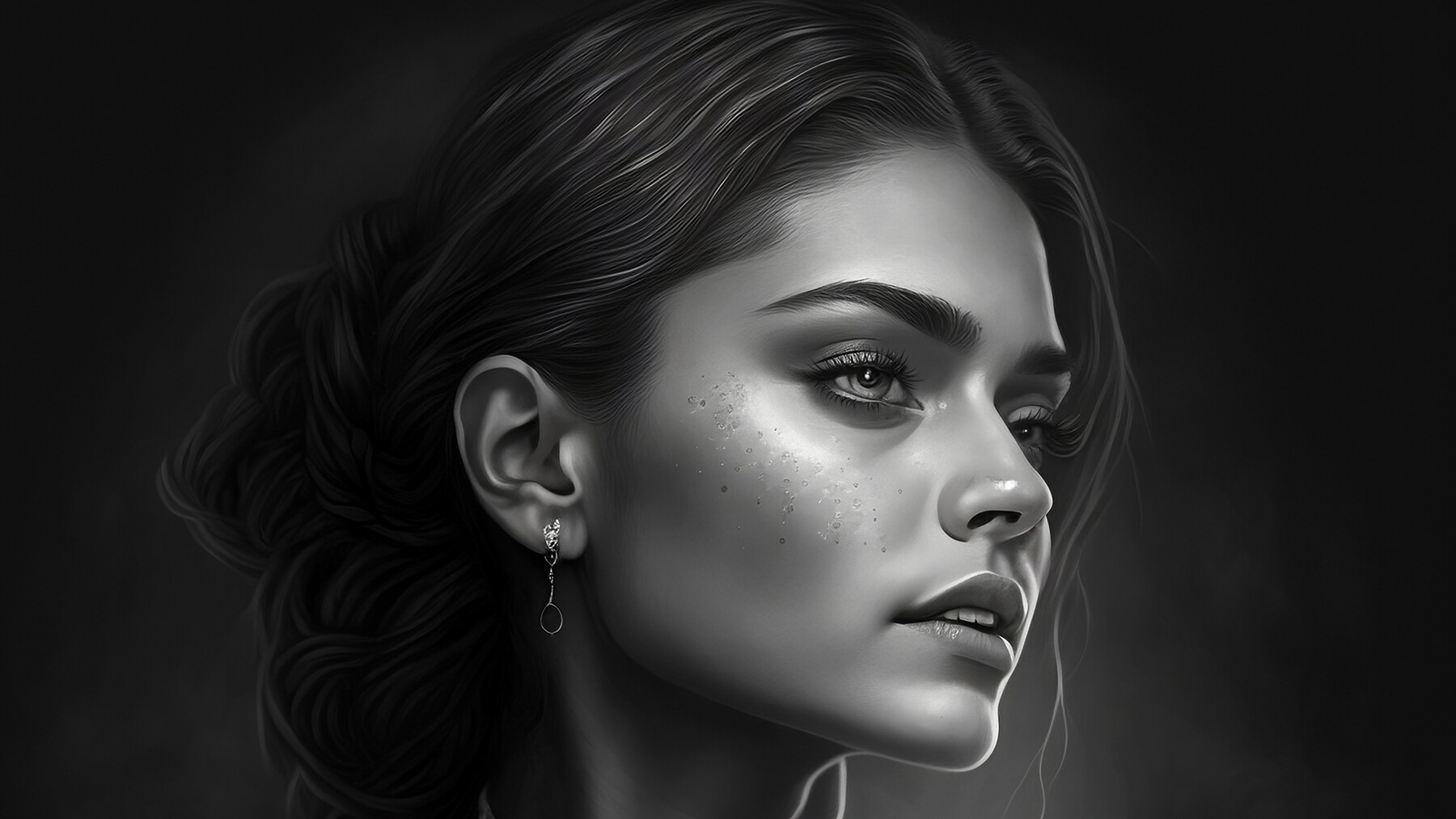


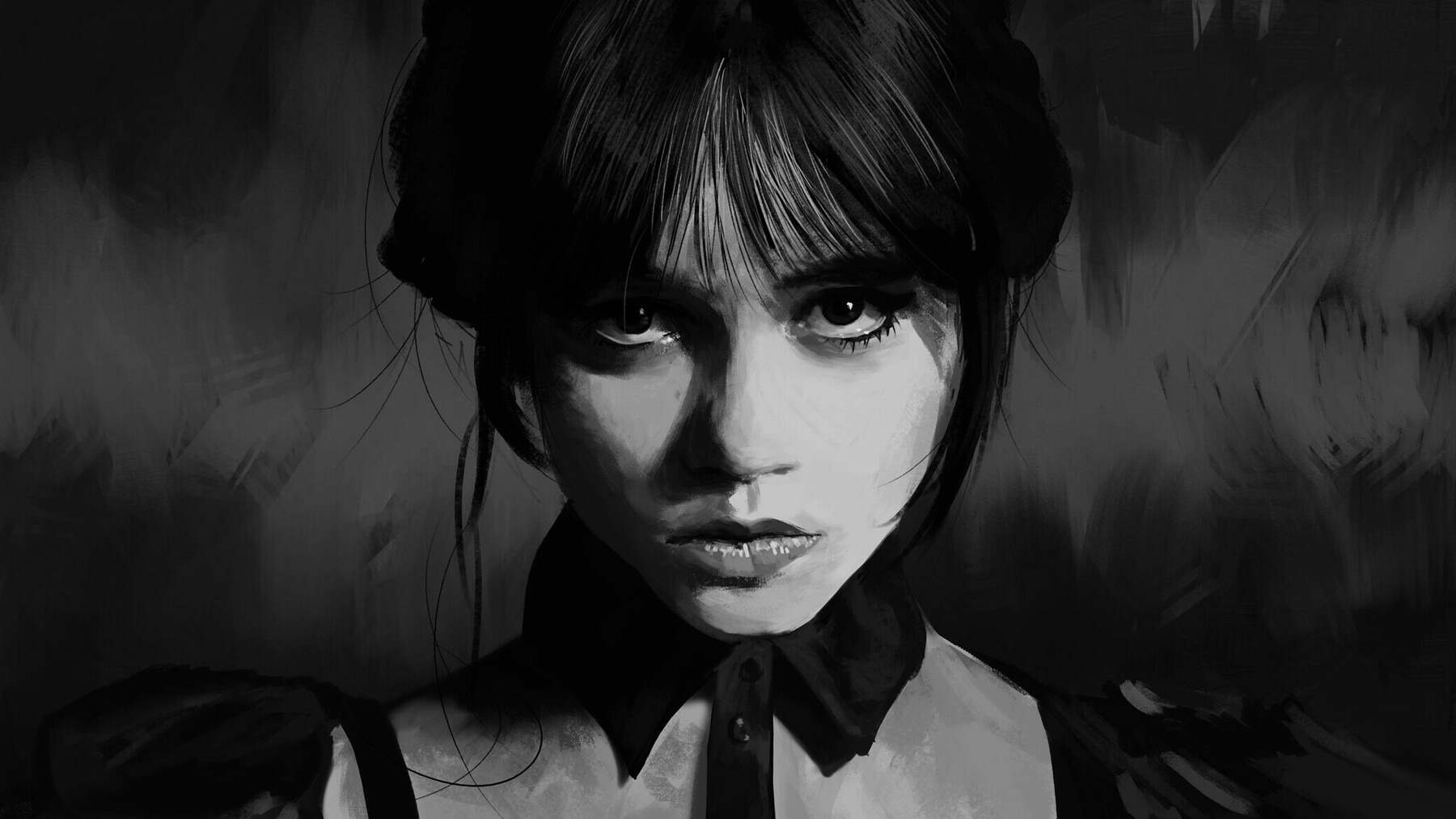

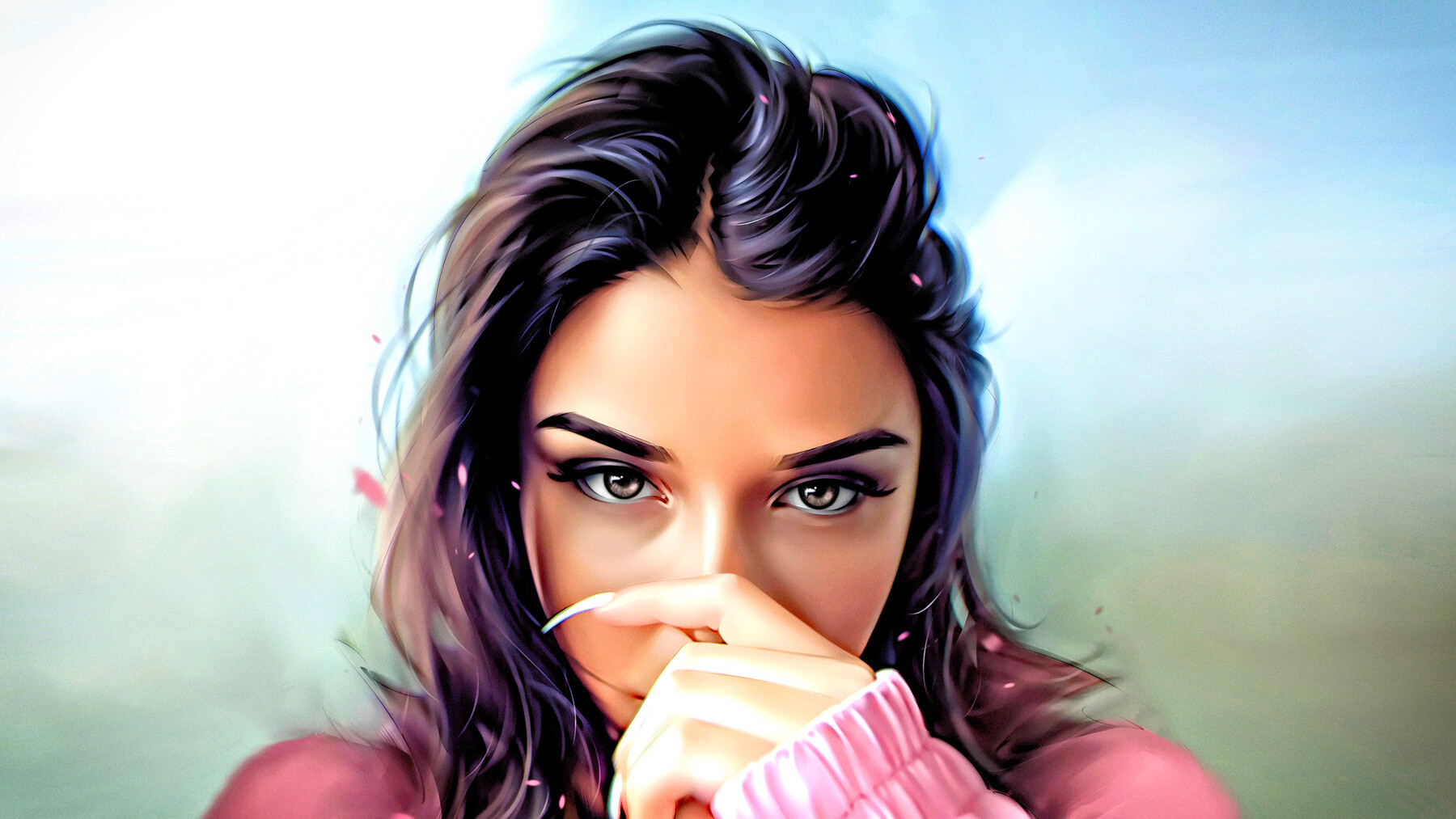
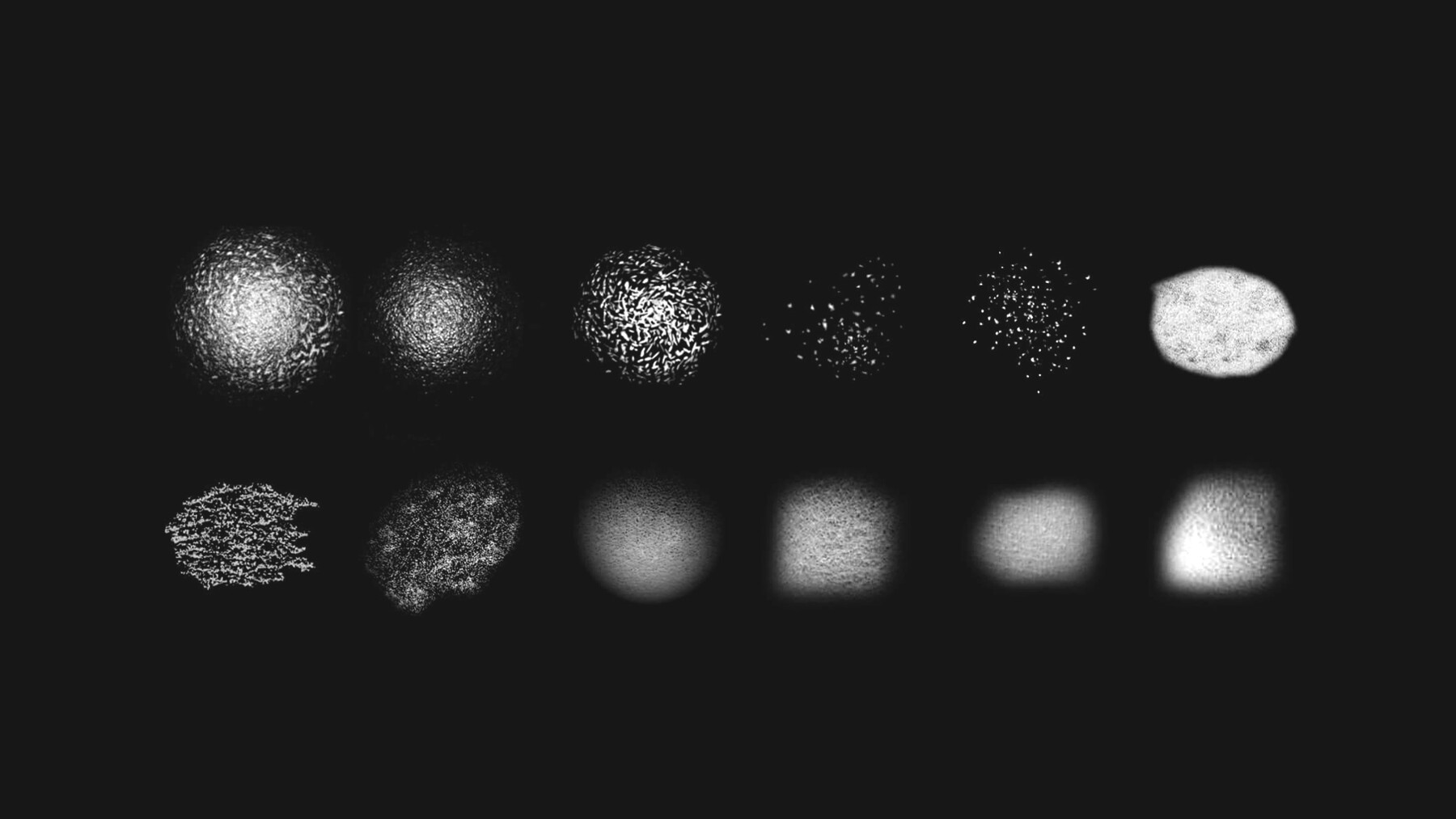
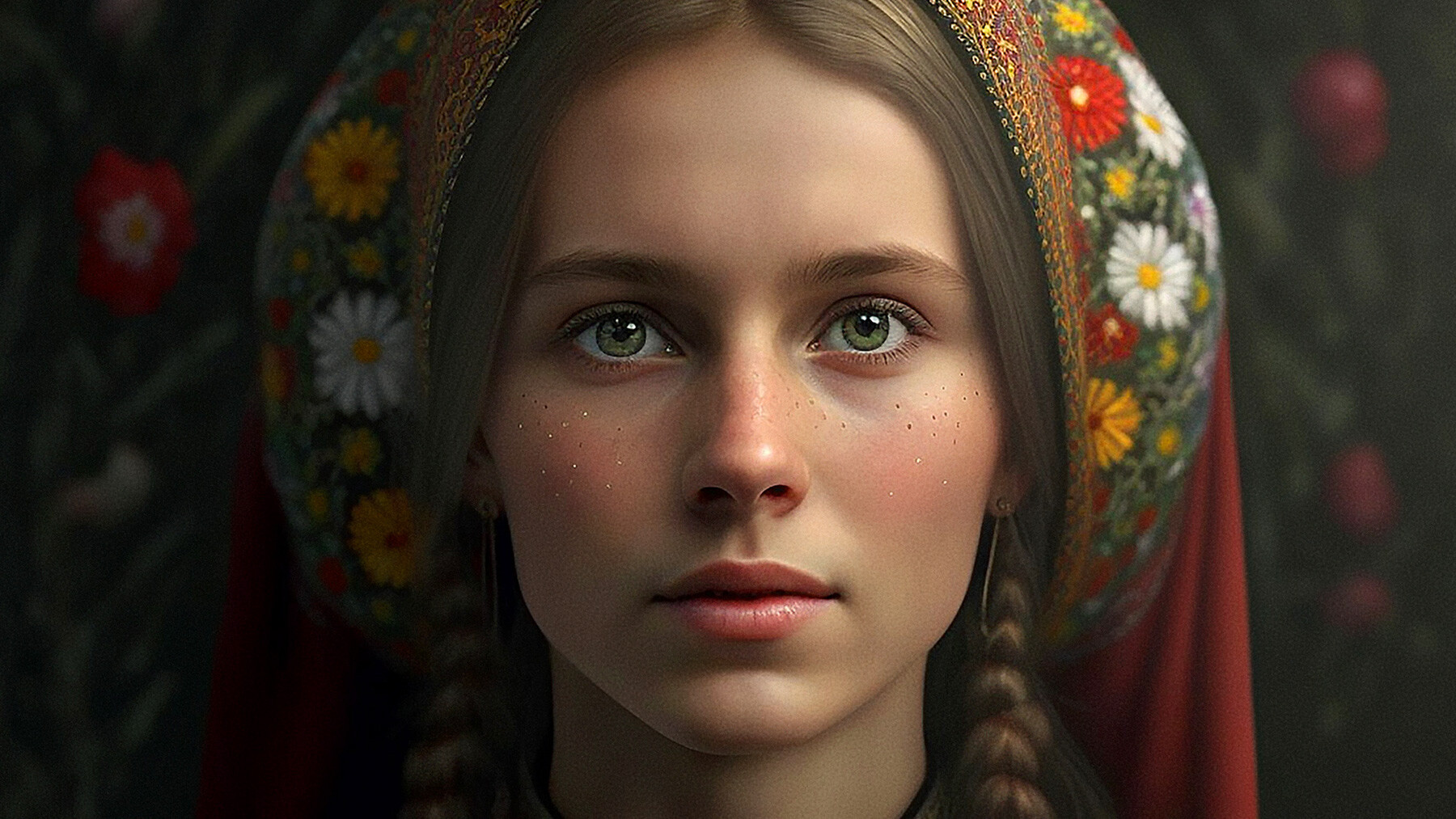
1250+ Procreate Portrait Figure Brushes are a must-have for artists, illustrators, and designers who want to create stunning and lifelike portraits on their digital canvas. With a range of brush styles and sizes to choose from, these brushes are perfect for anyone looking to add depth and realism to their digital artwork. Whether you're a beginner or a professional, Procreate Portrait Figure brushes will help you take your art to the next level and impress your audience.
Features of this set:
- Customized for Portrait Figures: The Procreate Portrait Figure brushes are specifically designed to cater to the unique demands of portrait drawing. These brushes are crafted with attention to detail and texture, allowing users to create realistic facial features, skin tones, and gestures that are difficult to achieve with regular Procreate brushes.
- High-Quality and Authentic Results: Unlike regular Procreate brushes, these custom brushes are made to deliver high-quality and authentic results, mimicking the look and feel of traditional media such as oil paint and charcoal. This feature is especially helpful for artists who want to achieve a more organic and tactile feel in their digital artwork.
- Range of Brush Styles and Sizes: The Procreate Portrait Figure brushes offer a variety of brush styles and sizes, ranging from fine detail brushes for intricate facial features to broader brushes for quick, expressive strokes. This variety provides users with the flexibility and control they need to create a wide range of portrait styles.
- Professional-Grade Tool: The Procreate Portrait Figure brushes are a professional-grade tool, making them suitable for artists and designers at any level of experience. This set of brushes has been created by artists who understand the importance of precision and flexibility in the creative process, ensuring that every brush in the collection is of the highest quality.
- Exclusive and Unique: The Procreate Portrait Figure brushes are exclusive and unique to your online store, making them a valuable addition to any artist's digital toolbox. By offering this exclusive set of brushes, you are providing your customers with a unique and special tool that they can't find anywhere else, helping to set your online store apart from the competition.
This Pack Contain:
- Skin Texture Brushes: For adding skin texture and subtle details to the face.
- Eye Liner Brushes: For drawing sharp and precise lines for the eyes and eyelashes.
- Eye Shadow Brushes: For adding color and shading to the eyelids and crease.
- Eye Brushes: For adding detailed and realistic eyes to the portrait.
- Lip Brushes: For adding color, depth and detail to the lips.
- Hair Brushes: For adding realistic hair textures, highlights and shadows to the hair on the face, such as eyebrows, beard and mustache.
- Blending Brushes: For blending and smoothing out harsh edges and shadows on the face.
- Contour Brushes: For adding definition and shape to the face using shadows and highlights.
- Freckles Brushes: For adding realistic-looking freckles to the face.
- Wrinkle Brushes: For adding subtle wrinkles and lines to the face for a more realistic look.
- Blush Brushes: For adding a natural blush to the cheeks and nose.
- Fine Liner: For drawing sharp lines in the portrait.
- Airbrush: A soft-edged brushes for adding smooth gradients and shading to the portrait.
- Highlight Brushes: For adding highlights to the portrait.
- Contour Brushes: For adding contours and depth to the portrait.
- Background Brushes: For adding background elements and textures to the portrait.
How to install your premium Procreate brush sets:
- Download a selection of different brushes from Dioeye Store. Custom brushes are often available in the form of a .brush or .brushset file.
- Open Procreate and go to the Actions menu, located in the top-right corner of the screen.
- Tap on the "Import" option.
- Select the brush set file you just downloaded.
- The brush set will be imported into Procreate and will be available for use in the Brushes panel.
- To access the newly imported brushes, tap on the Brushes panel, located in the top-right corner of the screen.
- Tap on the brush set you just imported and select the brush you want to use.
Here is some related Products:
- 565+ Watercolor Procreate Brushes
- 60+ Crayon, Chalk, Pastel, Oil Procreate Brushes
- 200+ Graffiti Spray, Street Art Procreate Brushes
- 1025+ Geometry and Pattern Procreate Brushes
- 485+ Ink, Calligraphy & Marker Pen Procreate Brushes
- 950+ Textures Procreate Brushes
- 423+ Oil Paint Procreate Brushes
If you still have questions, just send me a message to dioeye@gmail.com and I’m happy to help.