185+ Glitter Procreate Brushes
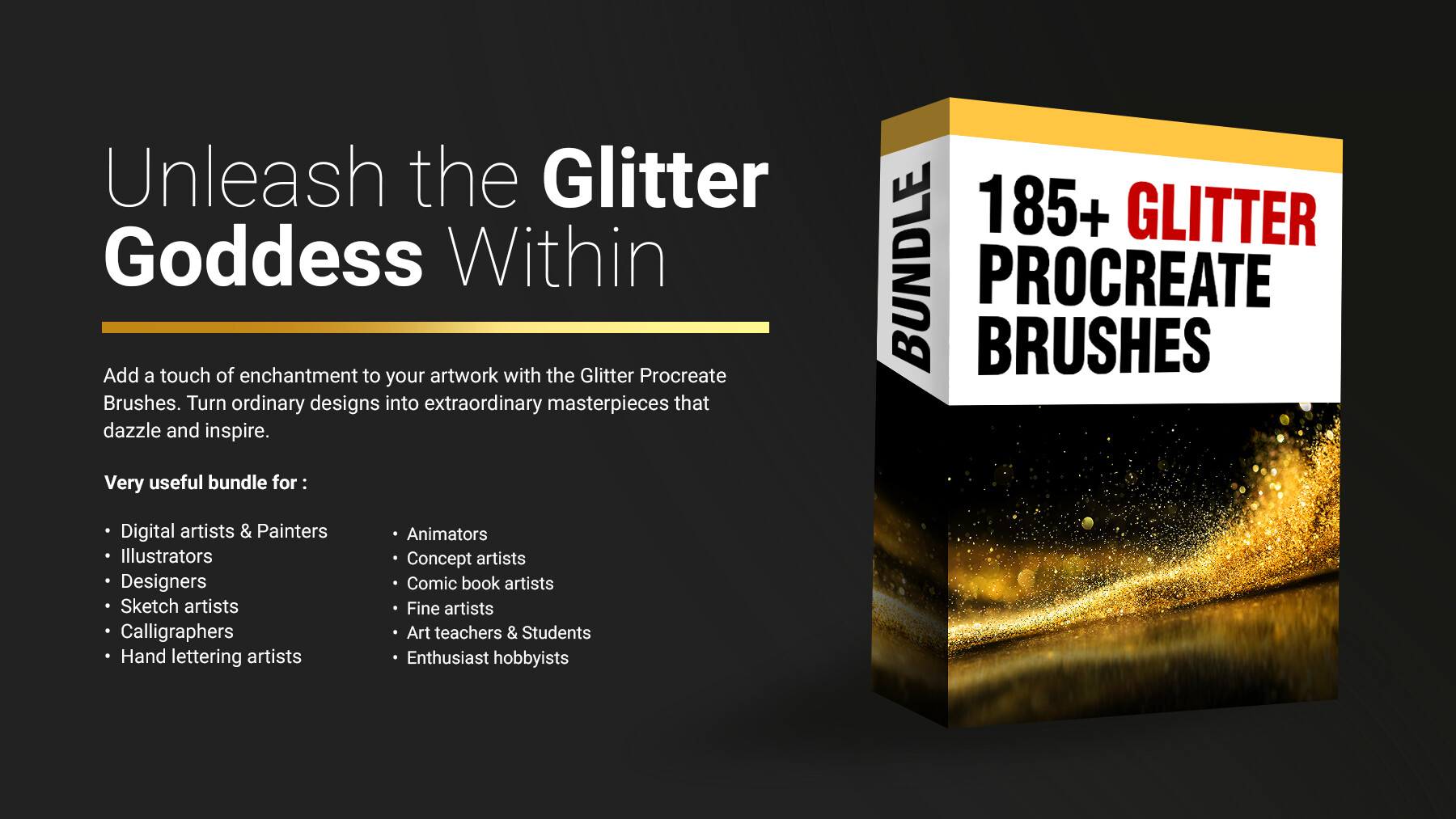

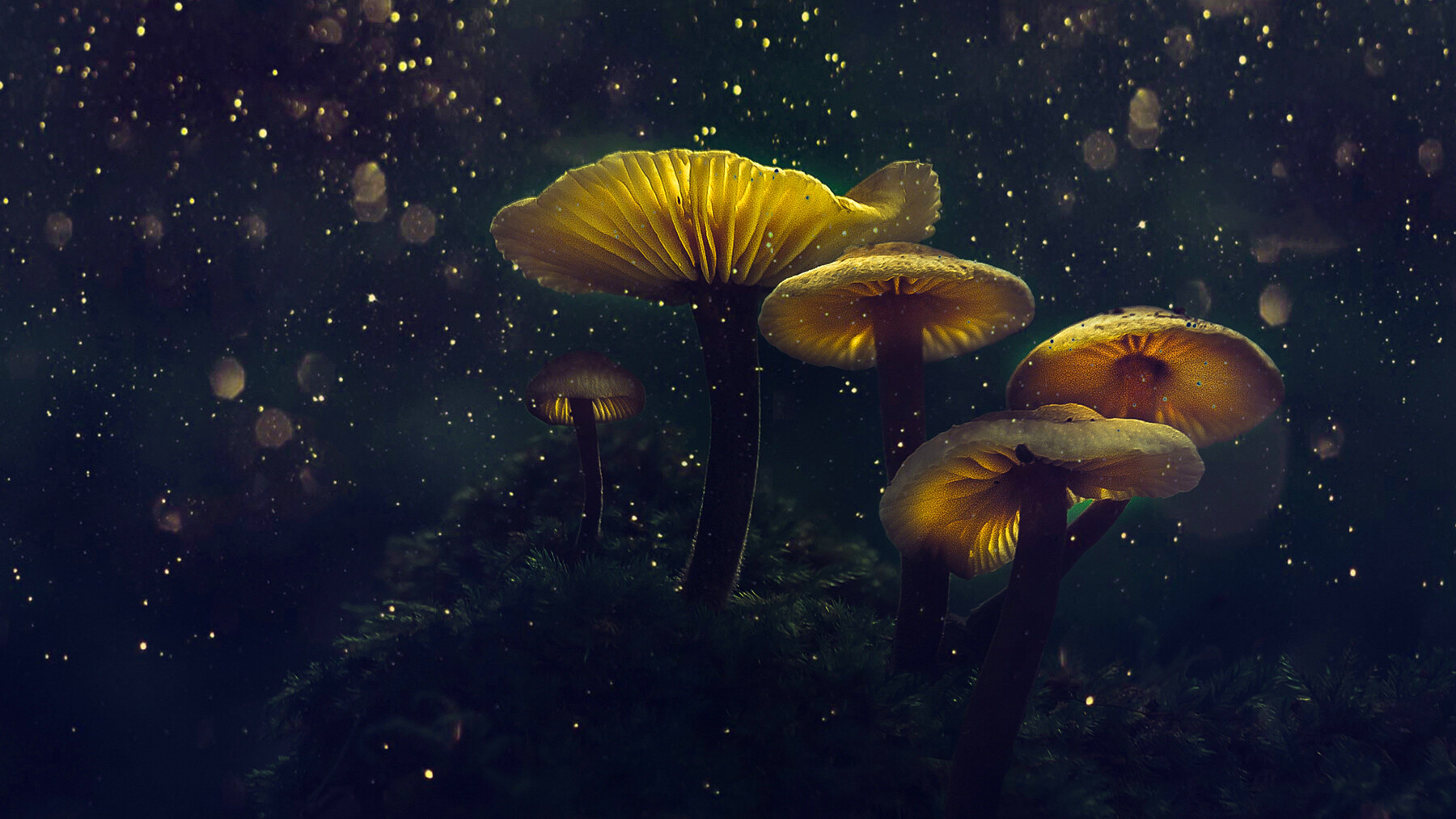


Introducing the mesmerizing Glitter Procreate Brushes, the perfect digital toolset for artists, designers, and creative enthusiasts looking to add a touch of sparkle and glamour to their artwork. Whether you're working on illustrations, lettering, digital paintings, or any other creative project, these brushes will take your creations to a whole new level.
The Glitter Procreate Brushes set includes a carefully crafted collection of high-quality brushes, each designed to simulate the enchanting look and feel of glitter. With their realistic textures and stunning effects, these brushes allow you to effortlessly incorporate shimmering elements into your digital artwork, giving it a dazzling and eye-catching appeal.
What sets these brushes apart is their versatility and ease of use. They have been meticulously created to work seamlessly with the Procreate app, making them incredibly user-friendly. Simply select a brush from the set, adjust the size and opacity as desired, and start painting or adding glitter accents to your artwork with precision and control.
The Glitter Procreate Brushes offer a wide range of options to suit different artistic styles and preferences. From fine glitter particles that create a subtle glimmer to bold and chunky glitters that make a bold statement, this set has you covered. With various brush styles, you can achieve different glitter effects, such as scattered glitter, dense glitter, sparkles, and more.
Enhance your digital paintings with a touch of magic, create dazzling typography, or add captivating elements to your illustrations. The possibilities are endless with these brushes. Whether you're designing social media graphics, creating invitations, or embellishing digital scrapbooks, these glitter brushes will instantly elevate your designs and captivate your audience.
Features of this set:
- Dynamic Glitter Density: One unique feature of the Glitter Procreate Brushes is the ability to adjust the density of the glitter particles. This means you can create various effects ranging from a scattered sprinkle to a dense concentration of glitter, giving you full control over the intensity and impact of the glitter in your artwork.
- Customizable Glitter Sizes: With the Glitter Procreate Brushes, you have the flexibility to customize the size of the glitter particles. This feature allows you to create both subtle and bold glitter effects, giving you the freedom to experiment and achieve the exact look you desire for your artwork.
- Multicolored Glitter Options: Unlike traditional glitter that comes in limited colors, the Glitter Procreate Brushes offer a wide range of multicolored options. This unique feature enables you to incorporate vibrant and eye-catching glitter hues into your artwork, adding a dynamic and visually stunning element to your creations.
- Realistic Glitter Textures: The Glitter Procreate Brushes are meticulously designed to provide realistic textures, mimicking the look and feel of actual glitter. This attention to detail ensures that your digital artwork maintains an authentic and captivating appearance, as if it were embellished with real glitter particles.
- Layered Glitter Effects: Another standout feature of the Glitter Procreate Brushes is the ability to create layered glitter effects. This means you can add multiple layers of glitter to your artwork, building up the sparkle and depth for a truly dazzling result. Whether you want a subtle hint of sparkle or an extravagant glitter explosion, this feature allows you to achieve it with ease.
How to install your premium Procreate brush sets:
- Download a selection of different brushes from Dioeye Store. Custom brushes are often available in the form of a .brush or .brushset file.
- Open Procreate and go to the Actions menu, located in the top-right corner of the screen.
- Tap on the "Import" option.
- Select the brush set file you just downloaded.
- The brush set will be imported into Procreate and will be available for use in the Brushes panel.
- To access the newly imported brushes, tap on the Brushes panel, located in the top-right corner of the screen.
- Tap on the brush set you just imported and select the brush you want to use.
Here is some related Products:
- 565+ Watercolor Procreate Brushes
- 60+ Crayon, Chalk, Pastel, Oil Procreate Brushes
- 200+ Graffiti Spray, Street Art Procreate Brushes
- 1025+ Geometry and Pattern Procreate Brushes
- 485+ Ink, Calligraphy & Marker Pen Procreate Brushes
- 950+ Textures Procreate Brushes
- 423+ Oil Paint Procreate Brushes
If you still have questions, just send me a message to dioeye@gmail.com and I’m happy to help.